Showing posts with label Windows Trickz. Show all posts

Wednesday, 28 December 2011

Windows 7 Tricks

Windows 7 is the most updated and an excellent operating system. But to work well with windows 7, you must know some tricks. I am discussing some of the windows 7 tricks here.

Windows 7 Trick 1:

In general, when you want to create the zipped version of any file or folder, you just right click on that file and use the send option from the drop down list. But in the case of Windows7, you do not able to get options in the ‘send to’ menu. Here you have to use this trick to get the option in ‘send to’ menu, which is hidden in Windows7. To get them, simply press the Shift key on your computer keyboard and hold it. Now, right click on that file or folder; go to ‘send to’ option, you can get those option.


Windows 7 Trick 2:

If you want to open any command prompt from any folder, just press the Shift key on your keyboard and hold it. Then right click on any folders from anywhere in your commuter; then you get an option from the dropdown list “Open command window here”, select this option and you will get a command prompt with that folder as the default path.

Windows 7 Trick 3:

In Windows7, if you want to cascade two or three opened windows in the task bar or tile them and view side by side, you should know this trick. To do this, at first you have to open the task manager. Then simply press the Ctrl key on your keyboard and hold it. Then select the open windows, you will get a pop up list; from that, just choose “cascade/show windows stacked” option from there.

Windows 7 Trick 4:

There are some shortcut keyboard tricks for Windows7:-
  • Magnifier:- “Windows” + “+” or “Windows” + “-“
This shortcut key zooms in or zooms out your computer screen and activates ‘Windows Magnifier’.
  • “Windows”+ “SHIFT” + “1” through “Windows” + “SHIFT” + “9”
This is used to start new instances of the respective taskbar icons.
  • “Windows” + “B”
By this you can focus on the “show hidden icons” on the system tray.
  • “Windows” + “1” through “Windows” + “9”
This launches 1st through 9th icon on the taskbar.
  • “Windows” + “Ctrl” + “1” through “Windows” + “Ctrl” + “9”
This toggles through the multiple instances of the icons.
  • “Windows” + “SHIFT” + “right arrow” or “Windows” + “SHIFT” + “left arrow”
This can be used to move any selected icon, from one monitor to another.
  • “Windows” + “P”
This is used to select “presentation display mode”.
  • “Ctrl” + “Alt” + “D”
This switches to “docked mode”.
  • “Windows” + “T” or “Windows” + “SHIFT” + “T”
This will help you to move focus to front/back on the taskbar.
  • “Windows” + “Esc”
The magnifier view can be exit by this.
  • “Windows” + “Alt” + “1” through “Windows” + “Alt” + “9”
This is used to open jump list for respective icons.
  • “Ctrl” + “Alt” + “L”
This is used to switch to “lens mode”.
  • “Ctrl” + “Alt” + “F”
This can be used to switch from ‘Docked’/’lens’ mode back to ‘Full Screen’ mode.
  • “Windows” + “G”
This toggles through desktop gadgets.
  • “Ctrl” + “Alt” + “I”
You can invert colors by this.
  • “Windows” + “X”
This shortcut key is used to launch ‘Windows Mobility Center’ especially useful for laptop.

Windows 7 Trick 5:

If you want to add any folder to the start menu, you can follow this trick. To do this, simply right click on them and select the ‘pin to start menu’ option. Or you can also drag that folder to the location you want.

Windows 7 Trick 6:

In Windows7, if you want to see the Alt-Tab prompt like XP, just press one Alt key on your keyboard and hold it, simultaneously press and release the other Alt key on your keyboard; then press the tab key. By using this trick you can able to see the XP Alt-Tab prompt in your Windows7.

Monday, 26 December 2011

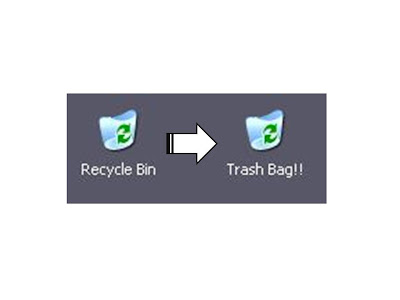
Rename your Recycle Bin !


To change the name of the Recycle Bin desktop icon,

  • Click Start then goto Run, write type Regedit and press Enter. It opens Registry Editor. Now in Registry Editor go to:
  • HKEY_CLASSES_ROOT/CLSID/{645FF040-5081-101B-9F08-00AA002F954E}
  • Now Open the ShellFolder folder
  • Change the Attributes data value from 40 01 00 20 to 50 01 00 20. Once completed change the CallForAttributes dword value to 0x00000000 (double-click and change value data to 0).
  • You must change both of these values to get the rename to appear.

Now go to your Desktop & Change your Recycle Bin to anyname you want :-)


If you like this Post, Please Comment ;)

Lock your Desktop within Seconds


If you are leaving your computer for a while and do not wish to turn it off, but want to assure that no-one else can use the computer while you are away, locking the desktop is the best option.

By pressing WINDOWSKEY+L, you password protect your system just as if you had logged out or restarted the computer. The advantage is that any programs or processes that were running when you locked the desktop will stay open and running in the background, ready for you to resume work or play.


If you like my post, do comment ;)

Open Firefox Browser inside a Firefox Browser


Open Firefox Browser inside a Firefox Browser!


To Open up Firefox Browser inside a Firefox Browser!,follow the steps below!
  • Open Mozilla Firefox
  • Copy & Paste the below Code in the Address bar!


    chrome://browser/content/browser.xul

  • By paste the above code again in the Address bar, you can open more n more Mozilla Firefox Browser inside your Mozilla Firefox Browser!

Make Sound when CAPS LOCK is pressed


Make Sound when CAPS LOCK is pressed


Its a common problem for most people to accidently hit the CAPS lock key when typing fast....

Simply Turn On Toggle Keys to hear a Sound whenever U press the CAPS lock

For XP Users
Go to Control Panel -> Accessibility Options -> Select Toggle Keys and Turn it On

For Vista & 7 Users
Go to Control Panel -> Ease Of Access Centre -> Keyboard Settings -> Turn on Toggle Keys

Sunday, 25 December 2011

Mac Themes for Windows 7

Have you always envied the vibrant looks of Mac themes but never owned a Macintosh? Well you don’t have to be envious anymore, because you can now have the same themes on your very own Windows 7 machine. Wondering how this could be possible? Read on for an inside scoop into how it is made possible.

Snapshots of Popular Mac themes

Experts say that the Mac OS Leopard was the coolest looking OS in the market. Below are the snapshots of the best Mac themes for Windows 7 in 2009.

Snow Leopard – Download


Leopard Dark – Download


Leopard Inspirat – Download


LIM Leopard – Download


There were more additions in the year 2011. Below are some of the snapshots of the popular Mac themes for Windows in 2012.

 Caesar Port – Download


Caesar Mod – Download


Nuala Black – Download


iMod Inspirat – Download


MochaRocha – Download


Tequilla – Download


Prerequisites for Installation

Experts say that you can give your Windows 7 a Mac look in 10 minutes. Before you begin you will need the following. Since you are going to use a Third Party theme you are required to download the following software which will allow you to customise your Windows 7 desktop:
  1. UniversalThemePatcher
  2. The Mac Theme

Step-by-Step Instructions for Installation

  1. After you have downloaded the Universal Theme Patcher, double click to open file.
  2. Open the folder Univaersal Theme Patcher
  3. Select the patcher acoording to your computer (64 or 86 BIT)
  4. Select your language and click OK
  5. The next dialogue box – Universal Theme patcher report will show you that 3 files need to be patched. Click Yes
  6. Click Patch for all three options in the next dialogue box. You will be asked to restart your computer
  7. After you have restarted your computer, install your Mac theme
  8. After installation, double click to open the downloaded Mac file.(Leave this window open)
  9. Open the hard drive of your computer
  10. Double click Windows>Resources>Themes 
  11. Extract the two files from the downloaded Mac Themes to the location of the previous step.
  12. Open the Control Panel>Change Theme
  13. You will find your theme under Installed Themes
  14. Click Save Changes.


Monday, 19 December 2011

Windows 7 tips for new users


1. Use Keyboard Shortcuts

Using the mouse, you can drag-”˜n-dock windows to either side of the screen, or drag it to the top to maximize it. These keyboard shortcuts are even faster:
  • Win+Left Arrow and Win+Right Arrow dock the window to the left and right side of the screen
  • Win+Up Arrow and Win+Down Arrow maximize and restore/minimize
  • Win+M minimizes everything
  • Alt+Up, Alt+Left Arrow, Alt+Right Arrow navigate to parent folder, or browse Back and Forward through folders in Explorer
  • Win+Home minimizes/restores all open windows except the active window
  • Alt+Win+# accesses the Jump List of program number ‘#’ on the taskbar

2.Rearrange System Tray Icons

SystemTray
You can rearrange icons on the taskbar as you wish and start new (or switch to running) instances of the first ten taskbar programs using Win+1, Win+2, and so on. The cool thing is you can also rearrange system tray icons. Reorder them on the tray or move them outside or back in the tray. Take control of what you want to always keep an eye on, and from which apps you’ll require notifications.
3. Access Jump Lists with the Left Mouse Button
Jump Lists usually show up when you right-click on a taskbar icon. However, they can also be accessed by holding the left mouse button and dragging upwards. If you’re using a laptop touchpad or a touch screen, this is convenient because you do not have to click any button to access a context menu.

4. Add Any Folder to Favorites

AddToFavorites
You can add any library or folder to the Favorites section in Windows Explorer. To add a folder, navigate to it in Explorer, right-click Favorites in the left navigation pane, and selectAdd current location to Favorites. Now you get quick access to your favorite folders in allFile->Save As dialogs!

5. Pin Frequently Used Folders to the Taskbar

Right-click, drag, and pin your favorite folders to Windows Explorer on the taskbar. They will now show up in the Jump List when you right click on Explorer giving you quick access to your favorite folders.

6. Pin Control Panel to the Taskbar

PinControlPanel
You cannot pin the Control Panel to the taskbar via the Start Menu or by drag and drop. Open the Control Panel and right-click its taskbar icon to pin it to the taskbar. An advantage of this is that Control Panel’s Jump List allows quick access to recently used functions.

7. Create Keyboard Shortcuts for Programs

You can create keyboard shortcuts for any program in Windows 7. Right-click the program icon and select Properties. Select the Shortcut tab, click in Shortcut key, to set the keyboard shortcut for that program.
ProgramShortcutKey

8. Open Command Prompt in Any Folder

Like the command prompt? Miss the “˜Open Command Window Here’ Windows XP power toy? Press “˜Shift’ when right-clicking on a folder to get that option in the context menu. This also works on the desktop. No power toy required!
ExpandedContextMenu

9. View Expanded ‘Send To’ Menu

Press Shift when right-clicking on a folder to get an expanded Send To menu.

10. Adjust Screen Text with Clear Type

Use Clear Type Tuner for the best look on your LCD monitor or laptop screen. Run “˜cttune.exe‘ from the Start Menu search box, or go to the Control Panel Display applet, and select Adjust ClearType Text from the left.
ClearType Tuner

11. Get Exact Colors On Your Screen

If you are an artist or you work with colors, use the Calibrate Color option in the Control Panel Display applet or run dccw.exe from the Start Menu search box. You can adjust gamma, brightness, contrast, and color balance, ensuring that colors are displayed correctly on your screen.

12. Customize the Power Button

If you restart your computer more often than you shut it down, change the defaultShutdown power button to Restart. Right-click on Start, select Properties, and choose the Power button action that you use the most.
StartMenuProperties

13. Customize Number of Items in Jump Lists & Start Menu

Right-click Start, select Properties, click Customize and choose the number of recent programs to be shown in the Start Menu and the number of items displayed in Jump Listsfrom the Start Menu Size section below.

14. Search Internet from the Start Menu

SearchInternetStartMenu
Enable Internet search from the Start Menu using your default browser. Run GPEDIT.MSCfrom the Start Menu search box to start the Group Policy Editor. In the left pane, go to User Configuration->Administrative Templates->Start Menu and Taskbar. In the right pane, right-click to Edit and Enable Add Search Internet link to Start Menu.
SearchInternet

15. Add Videos to Start Menu

Windows 7 does not place a link to your videos on the Start Menu by default. To add a link to your videos on the Start Menu, right-click Start, select Properties, click on Customize. In the Videos section at the bottom, choose Display as a link.
Add Videos

Sunday, 18 December 2011

How To Make Computer Speak Whatever You Type.

How To Make Your Computer Speak Whatever You Type.


Today I’m going to show you how to make your computer speak whatever you type by using your owntext to voice software. This is a simple yet amazing trick that can really impress your friends! This trick works on all Windows OS and doesn’t require any programming skills.

How to make your computer speak whatever you type:

1. Open Notepad and copy-paste the following code into it.

Dim message, sapi
message=InputBox("What do you want me to say?","Speak to Me")
Set sapi=CreateObject("sapi.spvoice")
sapi.Speak message
2. Save it with the name speak.vbs and click Enter.
3. Double click the saved file and Speak to Me application will open. 
Type in the box all the things you want your computer to say and then click OK.

Disabling Unneeded Windows Features


There are likely WindowsFeatures running on the computer you don't need. 
To see what these may be and make any changes you want:
  1. Start / Control Panel
  2. Programs and Features
  3. Click on Turn Windows features on or off
  4. It typically takes a little while for this window to populate
  5. Hovering the mouse over an entry gives a short description of it
  6. From here you can check or uncheck any entries you want.
  7. For example, you may not need Windows Fax and Scan
  8. Click the OK button when you are done

Changing Windows 7 Logon Screen

Change Your Boring Windows 7 Logon Screen In Just 1min – Simple Steps


Did you ever try to change windows 7 logon screen ? If not, let me tell you how to, Because its really fun and interesting to change windows 7  logon screen with your any own wallpaper. We usually see a boring blue logon screen every time when we try to login windows 7. But you can easily get rid of this routine logon screen with some easy tweaks in registry. You can customize it very easily and feel the pleasure of having a different logon screen compared to your friend’s computer. You can put any wallpaper as your logon screen. Just follow the below steps to change windows 7 logon screen.

How To Change Windows 7 Logon Screen In Simple Steps :

  1. Open Run (Windows + R) and type Regedit and press Enter.
  2. Navigate your registry to  HKEY_LOCAL_MACHINE\SOFTWARE\Microsoft\Windows\ CurrentVersion\Authentication\ LogonUI\Background.
  3. Now double click on the value OEMBackground and change the value from o to 1.
  4. change windows 7 logon screenYou can check the above screenshot for reference.
  5. Now create a JPEG that is smaller than 256kb and this picture should match the aspect ratio of your display.. Like for example if you are using 1152 x 864 then you can use upto 1280 x 965. Don’t worry if you have lesser or bigger resolutions. Windows will stretch the image to fit automatically.
  6. Now navigate to the C: Windows\System32\oobe folder on the windows drive (default c).
  7. Create a new folder named “info”. Open this folder and create a new folder named “backgrounds.”
  8. Now copy the JPEG picture you want to serve as the logon. Just copy paste the picture in this sub-folder.
  9. Now rename the JPEG file as “backgroundDefault”.
  10. That’s all. Now reboot and check your new custom made windows logon background.
In few windows 7 operating systems, you can automatically found that the info and background folders are already created. If so, then no need to create these folders again. Just copy the picture and rename it as mentioned in step 9. And if you have any queries on this change windows 7 logon screen post, simply ask your query below. It will be addressed as soon as possible. Thanks for reading and we hope you will share this simple trick to change windows 7 logon screen with your friends.

How to add a folder to Send To menu

How to add a folder to Send To menu 


STEPS:
1.
click My Computer.
2.
make sure that you can view the hidden files and folders in your system.
3.  
In the My Computer window, double-click Local Disk (C:)>>Documents and Settings>> double-click your user name>>SendTo.
4.  
Click File menu>> New, and then click Shortcut.
5.  
then Create Shortcut Wizard appears. Click the Browse button.
6.  
browse the folder you want to  add to your Send To menu, and then click OK.
7.  
Click Next.
8.  
Click Finish.


Now when you right-click a file and click Send To, you can view the folder as an option in the SendTo menu.

Trick To Create Invisble Folder Without Name In Windows 7 And Vista

Trick To Create Invisble Folder Without Name In Windows 7 And Vista


Trick To Create Invisble Folder Without Name In Windows 7 And Vista Windows 7 and vista allows you to create an invisible folder without any logo and name.If you have some private data and want to hide it from pirating eyes without using any external software then certainly you will benefit from this tutorial.

In this tutorial we will protect our data first placing it in an invisible folder and then hiding it so that no one can even accidentaly open that folder.So this will provide you with two level security.
How To Create A Folder Without Name In Windows 7 And Vista?

  1. Click on Start Button in taskbar
  2. Search For Character Map
  3. Open character Map and click on the blank Coloumn
    chracter Trick To Create Invisble Folder Without Name In Windows 7 And Vista
  4. Now Click on Select Button and then on Copy Button(Now you have copied a blank Space)
  5. Create a New folder and Rename it and press Ctrl+V keys from keyboard.
By this time we have created a folder without any name.Now we have to create a folder without any Logo.
invisible Trick To Create Invisble Folder Without Name In Windows 7 And Vista
How To Create An Invisible Folder  In Windows 7 And Vista?
  1. Right click on the folder that you have created without name in the previous step.
  2. Click on Properties>>Customise>>Change Icon
  3. Now will get a popup windows with various icon.Select the blank Icon
display Trick To Create Invisble Folder Without Name In Windows 7 And Vista
4. Press Ok
By this time you have created an Invisible folder with no logo and no name.
Move all of your private data in this invisible folder.
How To Hide the Invisible Folder In Windows 7 And Vista?
  1. Right Click on the Invisible Folder
  2. Select Properties and now select the Hidden Checkbox.
By this time you have your data in an invisible folder with no logo,name and which is hidden.So only you can access this folder as only you have knowledge where this invisible folder is stored.
How To Open This Hidden folder?
1.First Make Your Hidden Files,folders visible from  folders options in control panel.
2.Now go to the drive (location) of your computer where you have created the folder without name and icon.Now press Ctrl+A your folder will get highlighted.
Just open it.

How to increase downloading speed upto 2 times

How to increase downloading speed upto 2 times ..!!


 Various methods to Increase download speed is a major discussion on many forums..Here is the most important tips for faster download speed. Note that a faster modem will also boost your internet downloading speed.  
To Speed Up Download
I.
Use Internet Download Manager(IDM) to increase downloading speed.This is the only program that uses the whole bandwidth of your internet connection without wasting.
IDM tweak:
1.start IDM then goto Downloads>>Options.
2. Click on connections tab then change Default Max.Conn Number to 16.
3.Click OK

II.
Windows tweak:
1.Click start>>run>>type "gpedit.msc" press enter.
2.Under computer configuration navigate to Administrative templates>>Network>>QoS packet scheduler.
3.On the right side double click  "limit reservable bandwidth " .
4.Change Bandwidth limit (%) to 0.(from 20)
5.Click OK.

 
Design by Free WordPress Themes | Bloggerized by Lasantha - Premium Blogger Themes | Online Project management