Showing posts with label Photoscape Tutorials. Show all posts

Sunday, 18 December 2011

Basics OF PhotoScape

                                     ღ Basics OF PhotoScape ღ

                         BASICS OF PHOTOSCAPE
HOW TO ADD PHOTOSCAPE MATERIALS IN PHOTOSCAPE?
-

Save the material.

Then,go to

My Computer

Local Disk C

Program Files

Photoscape

& Then Put This Effect in the existing effects(By Copy Paste) or in any other folder.

*If Photoscape can't be found in program files,check ur downloads. It must be there*

 
HOW TO ADD MATERIALS IN YOUR PICTURE?
-
Open the picture in editor.

Go to Object > Click thE small box with mountain sun picture.

There, Go To The folder where u saved the material you want to put on your picture n

select the MATERIAL/TEXTURE you want to paste in your picture.

Now, Resize the effect so that it fits in the picture.

now, Right click on the effect & chose 'properties'.

Lower the opacity level to 160.
HOW TO ADD FONTS TO PHOTOSCAPE?
-
use WINZIP, WINRAR or 7 ZIP to open zip files

u can download any of these from

www.filehippo.com

or

www.download.com

Then,


Select the font > Ctrl + A

then,Ctrl+C

Now, go to 'Local disk C'

>Windows> Fonts


Open the folder FONTS > n then do 'Ctrl+v'

Your fonts 'll be pasted there. 
 
HOW TO REDUCE OPACITY LEVEL IN YOUR PICTURE ?

-

Right click on picture n reduce the opacity level accordingly. :D
 

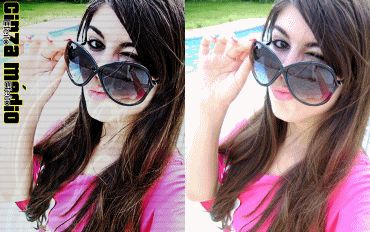
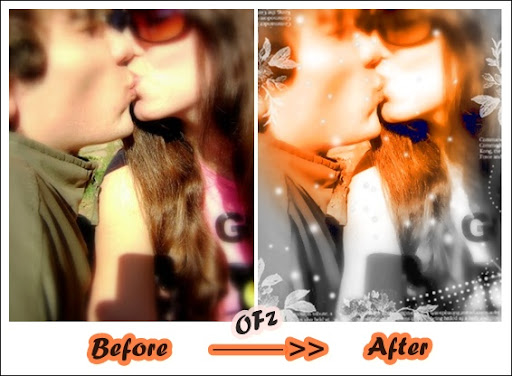
PhotoScape Tutorial - - ⋆ Gray + gif effect


Medium Gray ღ + gif effect

Gif Result:


Normal Result :


● Filter> Noise Reduction> High

● Tune> 10

● Brightness, color> Enhance Contrast> Middle

● Tab Home> Frames> Printline O1

● Brightness, color> depth> high

● Pressicione CTRL + V

● Take the image on the burgeoning and posion ft, taking full opacity.

● Go: Mountain with sunset> Photo of Cliboard> So set: Opacity: 141 Anchor: Center.

● Photo + cultural relics

● Brightness, color> depth> Maximo (Tom Gray)


Material Used :

⋆ PhotoScape Tutorial

 • Effect Gloss Pink

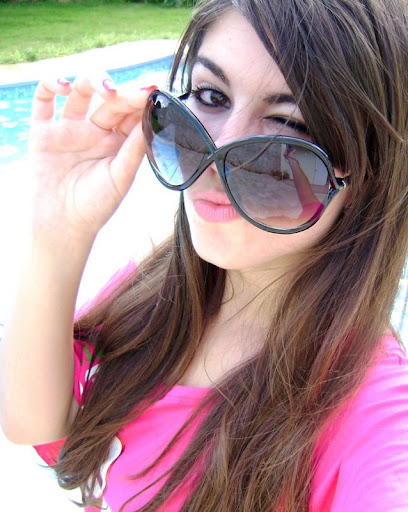
Result :


.

Sharpen> 3

Filter-Noise Reduction (deletes visual)> Low or Medium

Filter Effect-Film> Film> Medium

Auto Contrast> Down (2)

Brightness-Brightness Color> Medium

Color Brightness Color-> Color No. 215, Saturation No. 232, Level 76% OK

Filter-Region Out of Focus-Grayscale> Reverse Area> Feather 70%> Horz (upstairs). OK

Filter-Brightness Lens-# 9> Length. 107> thickness> 13> 100 Opacity and the side has

some color, if you want to change to another color change. OK (setting where you will)

Without Frame> Round 05> 05 Margin> Color> Pink> Frames> Colour> Purple>

Thickness> 3> Interior Margin> 4> Round 9> Type: Straight OK


⋆ PS Tut - - ⋆ • Effect Perfect lilas

⋆ PS Tut -  - ⋆ • Effect Perfect lilas
 
Open PhotoScape click "Editor" and stay on the ward "Home."

Open an image and go to:

Brightness, Color, Tint

Color: 191

Saturation: 255

Level: 100%

Save the photo.

Undo all

Change to the wing "Object" and go to "Photo> Photo." Open your photo that you

leave in lilac let the "Opacity" to 100 and give "OK". click on "Photo + Objects,"

× Filter> Noise Reduction (Deletes Visual)> High

× Brightness, Color> Brightness> Low

× Brightness, color> Improves Contrast> High


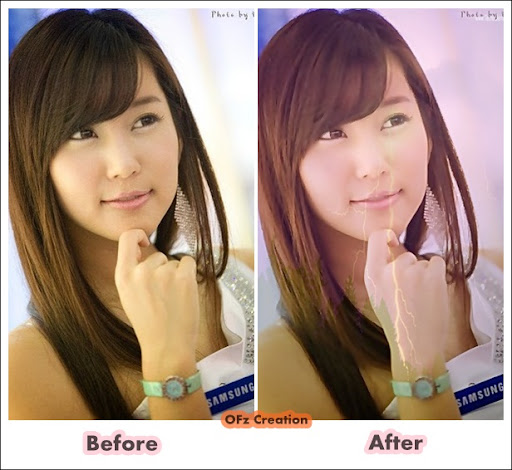
- ⋆ PhotoScape Tutorial - - ⋆ Thunder Effect

- ⋆ PhotoScape Tutorial -  - ⋆ Thunder Effect

Thunder Effect Result :
 
Thunder Effect

Material Yu Need :
-----
http://i44.tinypic.com/2co4tid.jpg
-----
http://i43.tinypic.com/2qk5eac.jpg
-----
http://i39.tinypic.com/2v2h1kk.jpg
-----
Guyz Save These Effects In Texture
 
                                                Procedure :

                                     Open Ewr Picture In Edittor..

                                     Bloom -> Low

                                   Smart Blur -> 3.8 [Use only if ewr pic need this effect]

                                    Noise Reduction -> Low

                                    Object -> Texture > Thunder Effect

                                   Opacity -> 64

                                   Sharpen -> 10

                                  Then, Photo + Object

                                  ewr Pic Is Ready
 

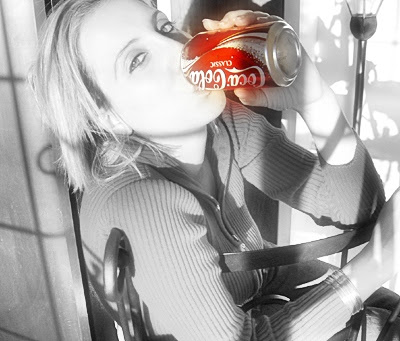
⋆ PhotoScape Tutorial -- ⋆ Coke

⋆ PhotoScape Tutorial - ⋆ Coke


- ⋆∫ PhotoScape -Coke- Tutorial
Sharpen-5

Filter > Noise Reduction> Low

Click on Center of Bright,color> Deepen-20 > Brighten> 10 > Darken> 11 > Ok !

Filter > Region Out Of Focus > Gray Scale >( Adjust Size and feather)


Result:-

- ⋆ PhotoScape Tutorial - ⋆

PhotoScape Tutorial - ⋆


Awesome Effect

Result:

 
Material required:-

 
Material required:-

http://i48.tinypic.com/6zmsrb.jpg


Procedure:-


Open the picture in editor.
Step-1

Turn it to black n white.

step-2


Then, Bright.Color>Colorize.


Saturation level>255

Level>100%


Step-3

Filter>Region Out Of focus>Choose 'grayscale' in 'radial form'

Size>66%
Feather>50%

Then OK (or Apply)

Step-4

Then,apply the texture on it n combine ur photo with object. (Or Material link which given in previous post)

Filter>Smart blur(clear skin)

Picture is Ready \M/


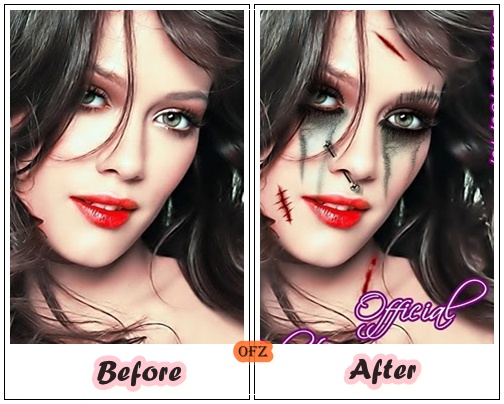
⋆∫PhotoScape- ⋆∫Vampire Effects- ⋆∫ -

⋆∫PhotoScape- ⋆∫Vampire Effects- ⋆∫ -

∫ ⋆∫PhotoScape- ⋆∫Vampire Effects- ⋆∫ -

REsult :
 
Material required:-
 
More Editing Material :

PIERCINGS :

http://www.4shared.com/file/122141377/43270d3a/_Piercings__PhotoScape_Edies.html


MARKS :

http://www.4shared.com/get/220038499/953576e5/Feridas__PhotoScape_Edies.html
 
PROCEDURE:


Filter > Noise Reduction > Medium

Backlight>100 %

Bright.Color> Color Enhance


Then, Just adjust those materials accordingly

& SAve

Pix Is ready


Design by Free WordPress Themes | Bloggerized by Lasantha - Premium Blogger Themes | Online Project management